A little practice, a clearer CSV
Let’s tidy up that bank CSV.
Make dates and amounts easier to check before a QuickBooks import. Start with our practice file.
1. Grab the practice file
Download the practice CSV (.csv)
Free · no account needed · files processed in your browser
Open the fixer and choose your download. We’ve included a bad date and a repeated row so you can see what needs attention.
2. Match the columns
Keep First row contains column names checked. Match the columns like this:
| Column | Match to |
|---|---|
| Transaction date | Date |
| Details | Description |
| Amount | Amount |
| Reference | Ignore |
- Date order: Day / Month / Year
- Number format: 1,234.56
- Remove later copies of exact duplicates: off
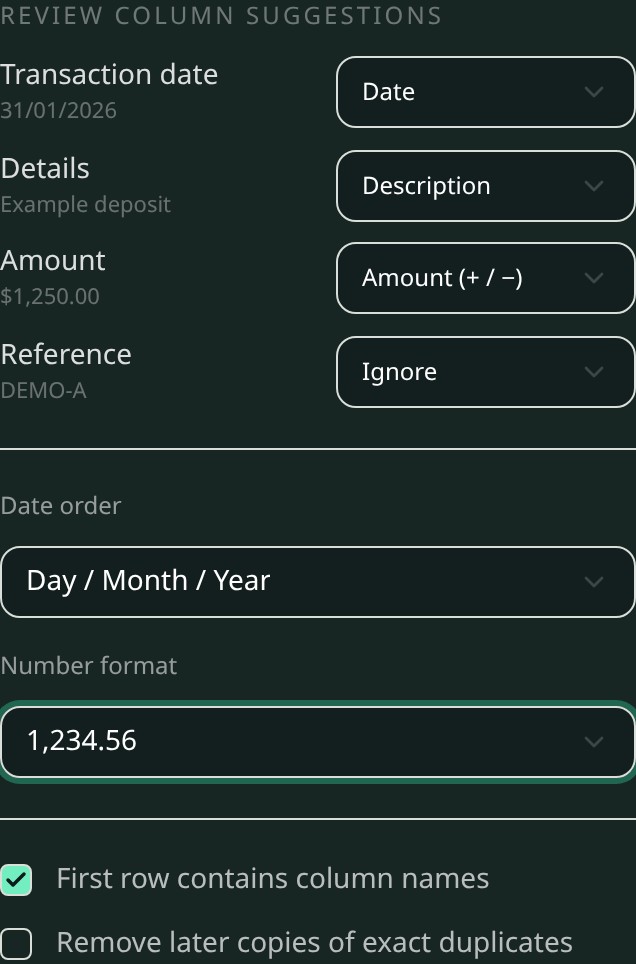
These settings are for this example. Check your own bank’s date and number formats before using a real file.
3. Take a look at the result
Here’s our example subscription, tidied up:
| Field | Before | After |
|---|---|---|
| Date | 03/02/2026 | 02/03/2026 |
| Amount | ($49.99) | -49.99 |
The date still means February 3; the output uses month/day/year. Parentheses become a minus sign.
Expect 4 valid rows, 1 invalid row and 1 exact duplicate. The bad date is left out, not fixed. The repeated row stays because removal is off.
Compare yours with the expected result (.csv)
That’s the practice done. For real files, keep the original and correct every excluded row using your source before importing. Never guess a missing date or remove a payment just because it repeats.
The tool cannot detect previous QuickBooks imports or guarantee acceptance. Review your file and the QuickBooks import preview separately.
Optional: which number format does my bank CSV use?
Compare these synthetic amounts with the decimal and grouping separators in your original statement or bank export settings. Do not delete punctuation until you know what it means.
| Source amount | Choose Number format | Output amount |
|---|---|---|
1,234.56 | 1,234.56 | 1234.56 |
1.234,56 | 1.234,56 | 1234.56 |
This separate synthetic CSV example quotes the amount because it contains a comma. Practice only; never import it into a real account.
Date,Description,Amount
03/02/2026,DEMO deposit,"1.234,56"
Choose Day / Month / Year and Number format 1.234,56. The date means February 3 and exports as 02/03/2026; the amount exports as 1234.56.
1.234 or 1,234 alone can mean different amounts. Likewise, 01/02/2026 can mean January 2 or February 1. Auto-detect blocks every corrected download when either has multiple valid meanings; choose the source format explicitly. Currency symbols and other rows do not settle an ambiguous value. If different dates require conflicting month-first and day-first formats, correct the source file and load it again; a single choice cannot resolve that conflict.
The formatter changes text and structure. It does not reconcile your account, validate a statement or guarantee import acceptance. For destination requirements, see Intuit’s CSV import troubleshooting.
Why Credit and Debit can look reversed
Source headers do not establish money direction. Use the bank statement or export documentation to identify actual payments and deposits, then review the suggested mappings. Do not rely on the words Credit, Debit or Payment alone, or on currency or locale.
This separate synthetic example defines a payment of 100.00 and a deposit of 200.00. Practice only; never import it into a real account.
Date,Description,Credit,Debit
2026-01-15,DEMO payment,100.00,
2026-01-16,DEMO deposit,,200.00| Source column | Initial suggestion — unconfirmed, no export | Verified mapping to choose |
|---|---|---|
| Credit: payment 100.00 | Money in (Credit output) | Money out (Debit output) |
| Debit: deposit 200.00 | Money out (Debit output) | Money in (Credit output) |
On first load, these header-based suggestions have not been verified: no corrected download or control total is shown. For this fictional source, change both mappings as shown before confirming. The bank statement or export documentation must establish the meaning for your own file.
After correcting both selectors, check I checked the source and confirm the money-in and money-out mappings shown above, including any unmapped side. The fixer then shows money in 200.00, money out 100.00 and net 100.00. Do not swap every file’s columns: other exports may use the opposite convention. A file with only one direction can leave the other side unmapped after you confirm that this matches the source.
All split-column corrected downloads and control totals stay blocked until you confirm. Changing the file, header interpretation or a column mapping clears confirmation. Ambiguous date and number formats still need resolution separately. The signed Amount workflow does not require this split-column confirmation.
Source confirmation is not destination validation. The fixer retains its existing output header order Date,Description,Credit,Debit, with money in under Credit and money out under Debit. Verify which fields and signs your QuickBooks import expects, map the destination appropriately, and inspect its import preview against your source. Do not assume matching header names mean matching direction or that these totals reconcile your account.
See Intuit’s US CSV format guidance, UK CSV format guidance and manual upload instructions. No destination import or account reconciliation was performed for this example.
QuickBooks CSV too large? Review separate upload parts
Intuit’s manual upload guidance lists a 350 KB file limit and up to 1,000 lines per upload. It recommends downloading a shorter date range for larger uploads. If you already have a CSV, the fixer can split its formatted output: each part has its own header, at most 999 transaction rows and at most 350,000 bytes. Long descriptions can make a part reach the byte limit sooner.
Here is the boundary in a synthetic 1,000-transaction file, with unique descriptions DEMO payment 1 through DEMO payment 1000 and the same date and amount on every row. Map Date, Description and Amount; keep duplicate removal off. Practice only; never import this data into a real account.
Before: the last two transactions in the source CSV (the first 998 are omitted from this excerpt).
Date,Description,Amount
2026-01-15,DEMO payment 999,-1.00
2026-01-15,DEMO payment 1000,-1.00
After — part 1: 999 transactions; this excerpt shows its header and final transaction.
Date,Description,Amount
01/15/2026,DEMO payment 999,-1.00
After — part 2: one transaction; this is the complete CSV content.
Date,Description,Amount
01/15/2026,DEMO payment 1000,-1.00
Choose Download part 1 and Download part 2. A two-row file copied from the excerpt will not split. Review excluded rows first, then check each real part in QuickBooks and keep a record of which parts you imported. Do not also import the original or an overlapping rerun. Splitting cannot detect existing QuickBooks transactions, recover excluded rows or guarantee import acceptance.
Want a closer look?
Why is one row left out?
The stationery row has 31/02/2026. February has no day 31. You’ll find it on source row 6, counting the header. It is left out of the output, so the four-row result is incomplete.
To explore this, download the tool’s issues list and find the row. For real data, check the original statement for the actual date, edit a working copy and rerun the full file. If the source is unavailable, leave the issue unresolved. This example supplies no replacement date.
Before a real upload, check the destination account, existing transactions, fields and MM/DD/YYYY output format. Do not upload both a partial result and a later full file without checking for overlap.
Should I remove the repeated payment?
Only if your source confirms it was an accidental copy. Identical rows can represent two legitimate payments.
Want to try removing a copy? Suppose our fictional DEMO-B was accidentally copied. Turn on Remove later copies of exact duplicates: the later subscription disappears and the output has three rows. The downloadable expected result keeps both copies.
The fixer compares every cell in each source row, including ignored Reference. A different reference makes rows different even if their exported Date, Description and Amount match. Neither result proves whether a real payment should be removed.
Check the totals and download a checklist
| Check | Removal off | Removal on |
|---|---|---|
| Output rows | 4 | 3 |
| Money in | 1,250.00 | 1,250.00 |
| Money out | 104.48 | 54.49 |
| Net | 1,145.52 | 1,195.51 |
With removal off, money out is 49.99 + 49.99 + 4.50. These totals are not an account balance or proof the whole statement is represented.
File format, official guidance and privacy
The output keeps Date, Description and Amount and leaves out Reference. It uses MM/DD/YYYY dates, a UTF-8 byte-order mark and CRLF line endings. The expected-result download matches the formatter’s bytes with duplicate removal off.
Intuit documents this three-column layout with negative payments and positive deposits. See Intuit’s CSV format guidance and CSV import troubleshooting. Requirements can vary by product and region. Official guidance checked October 27, 2026 (KST).
No live QuickBooks import was performed. The tool does not connect to QuickBooks, verify statements or recover missing facts.
This guide uses limited aggregate pageview and tool-link analytics. Files are processed locally. Limited tool analytics exclude filenames and contents, but selecting these practice files can count as a workflow. That does not establish customer use or a successful import. See privacy.
Independent of Intuit and QuickBooks. Formatting practice, not accounting advice.