A small job, worked through
Resize or crop? Keep the important bit in your social image.
Resizing changes pixel dimensions. Cropping removes part of the picture. If the source and target have different shapes, this resizer does both.
Try a resize first
- Download the synthetic source PNG below and open Social Image Resizer.
- Choose the Instagram square preset and JPG format, then choose that PNG.
- Leave Crop position at Center. Click Resize and compress.
- Check the preview: the mug stays, but the yellow label is cut off. Choose Left under Horizontal position and resize again to keep the label.
- Check the new preview before choosing Download image.
See what the center crop keeps
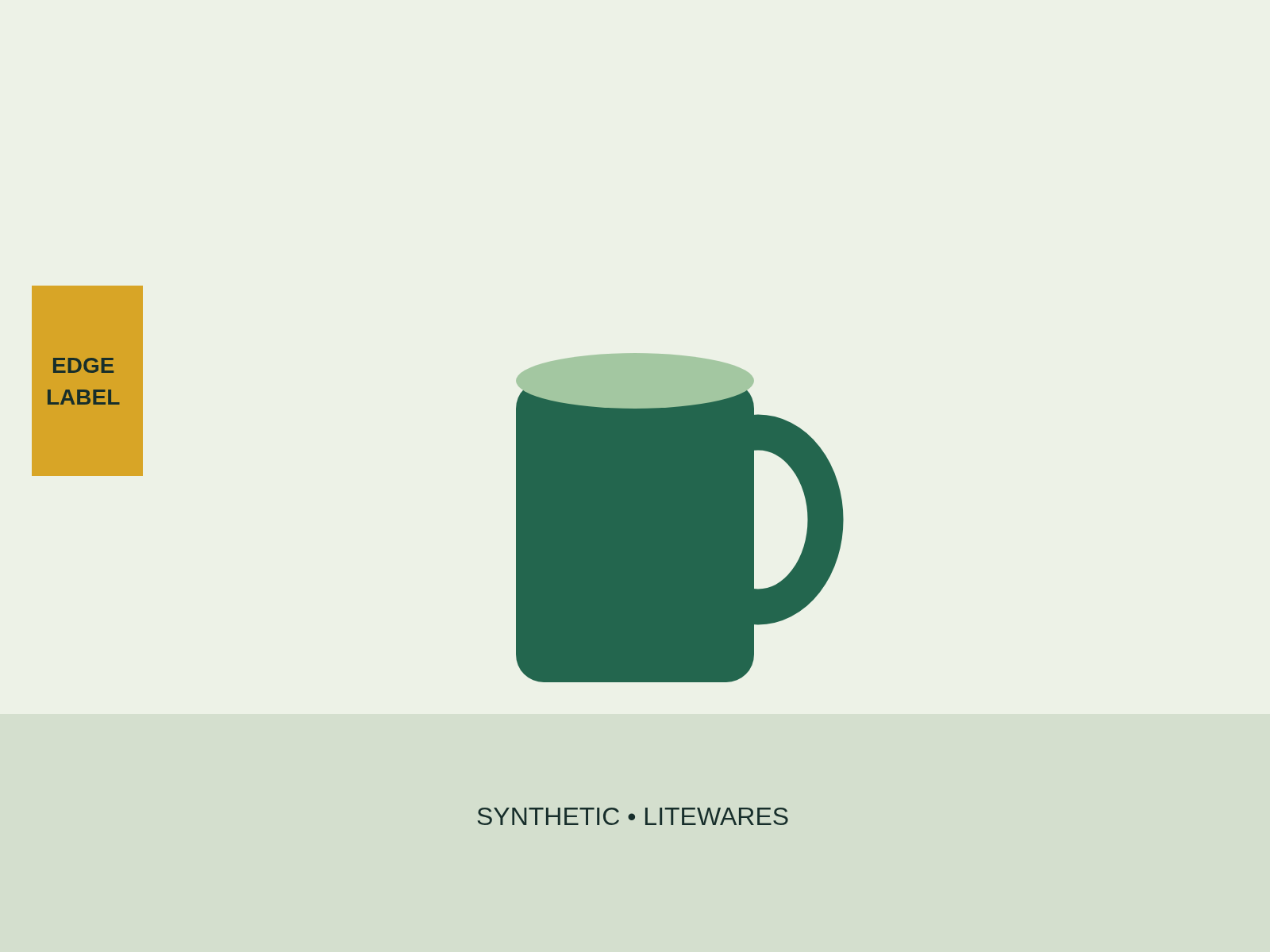
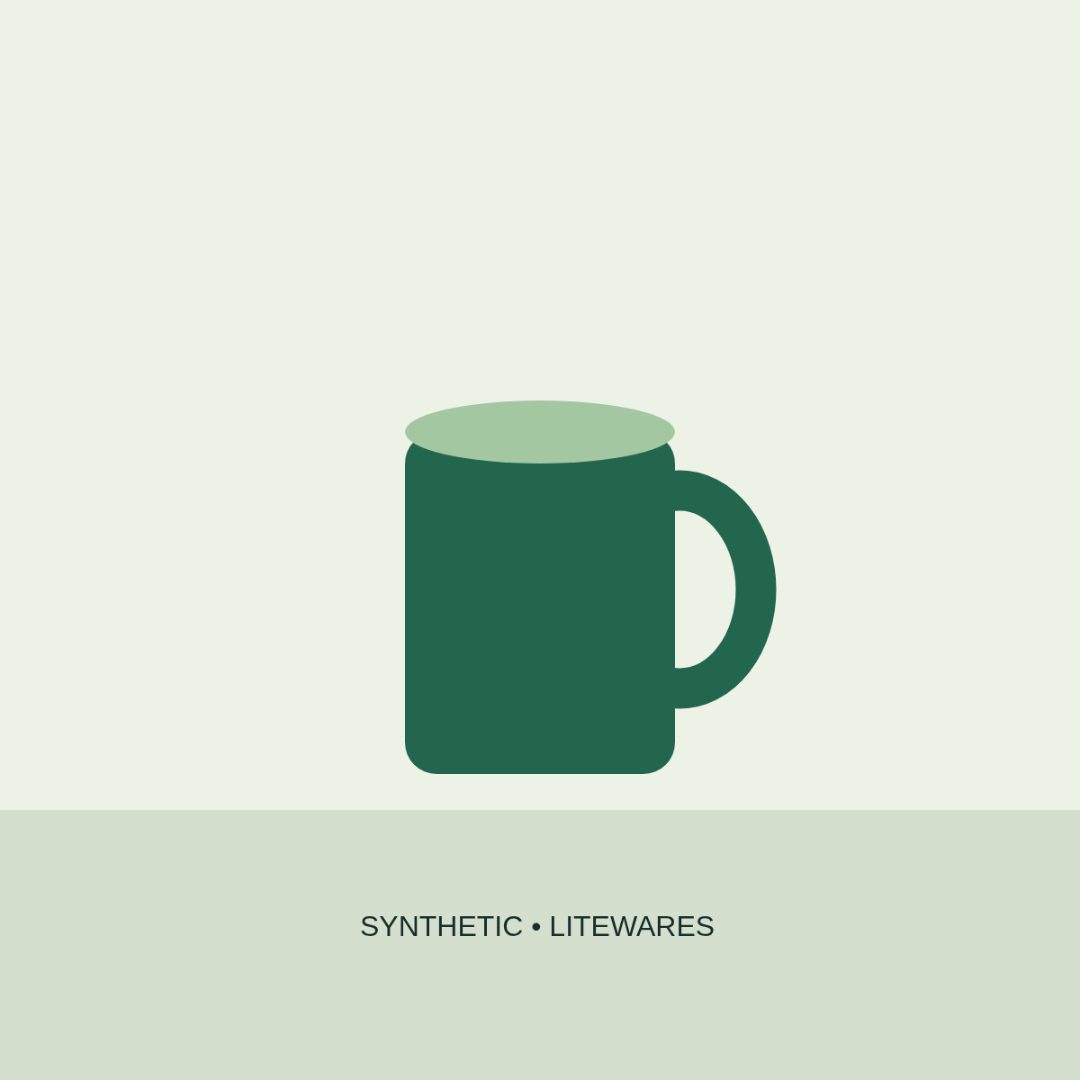
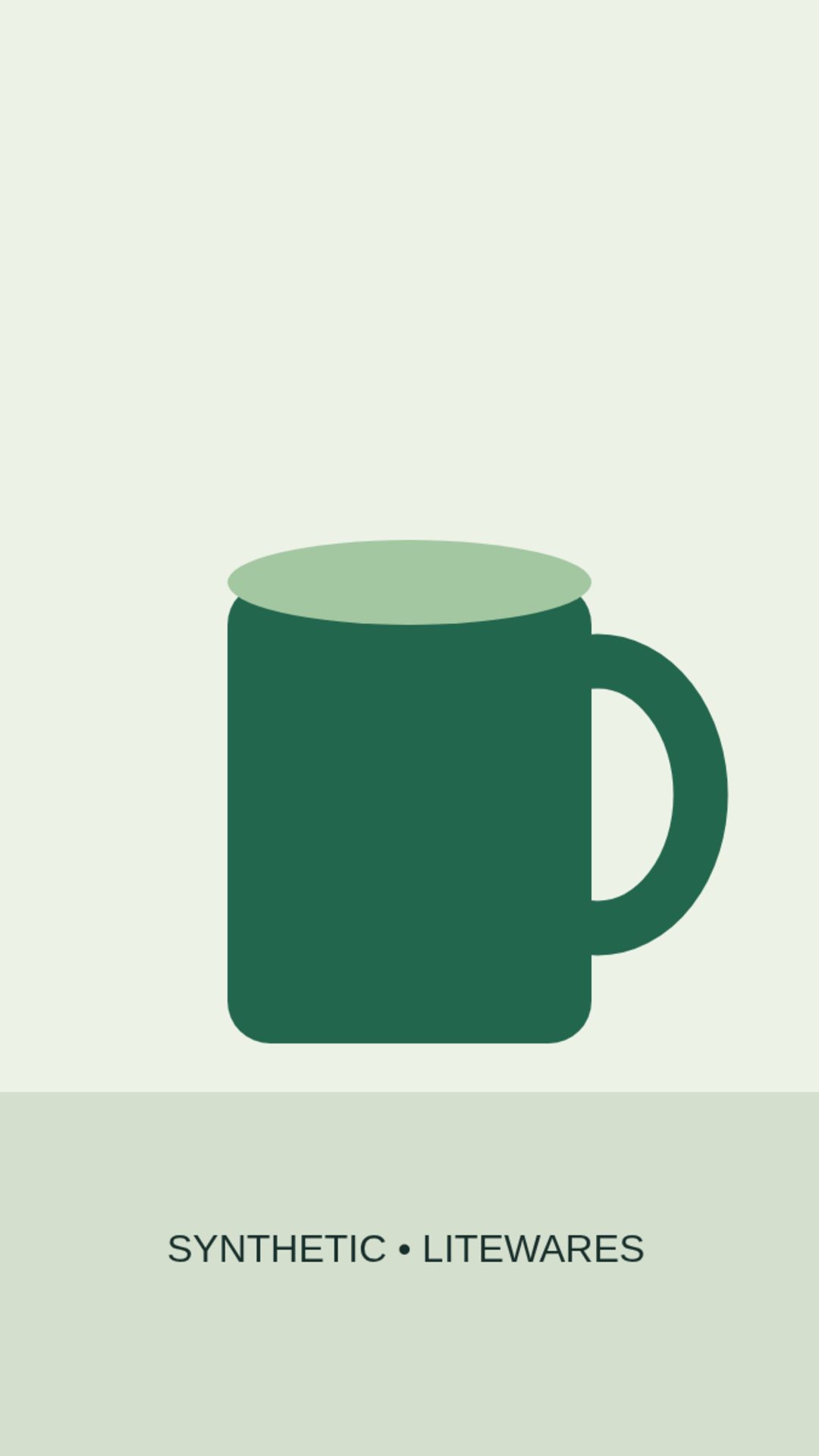
Original synthetic artwork: a green mug in the middle and a small yellow label near the left edge. These JPG examples were produced by the resizer’s actual image-processing function from the downloadable PNG.
Pick a shape before you pick a size
- Same aspect ratio? The image can resize without losing an edge. Width divided by height gives the ratio.
- Different ratio? A wider source loses its sides; a taller source loses its top and bottom when filling the target.
- Important content near an edge? Move the crop toward that edge and inspect the result preview. If the required content still cannot fit, recompose or add padding in another editor. This tool has no fit-with-padding mode or subject detection.
Choose a preset and JPG/WebP format, select a file, then choose a crop position. Use Resize and compress to see the exact downloadable image in the preview before choosing Download image. Changing a setting clears the previous preview and download; resize again to inspect the new result.
Keep a subject near the edge
Use the synthetic mug and yellow label above to compare center and left positioning. Select the Instagram square preset and JPG. Center loses the label. Choose Horizontal position: Left, then resize again to keep it. Both outputs are 1080 × 1080; moving the crop changes what is retained, not the output size.
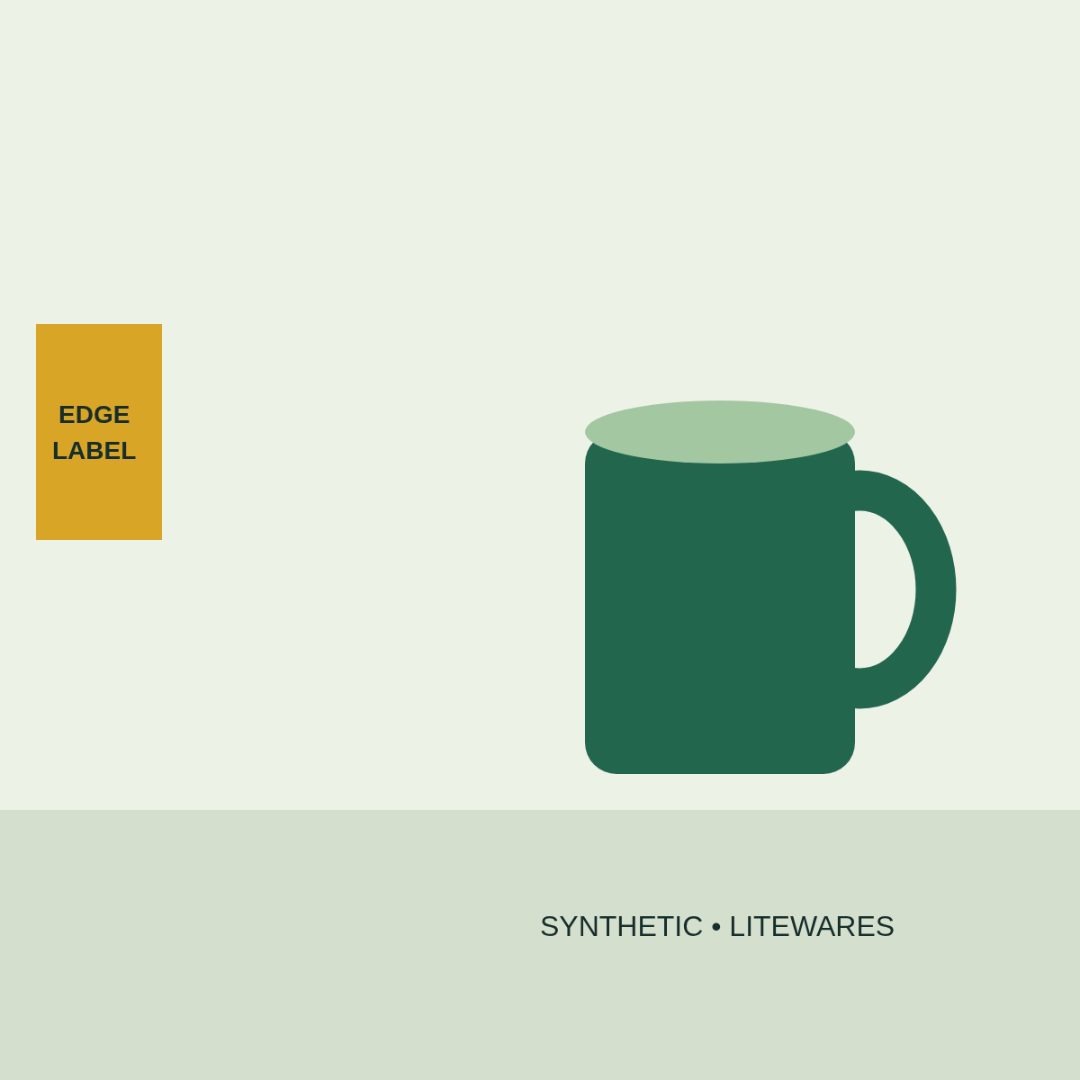
Download the synthetic left-aligned square JPG. This was produced by the resizer’s actual processing workflow. Horizontal choices are left, center and right; vertical choices are top, center and bottom. A direction is disabled when no cropping is needed on that axis. New files and preset changes reset the position to center.
The preview shows the encoded download at a smaller screen size. Check text and subjects yourself: there is no face detection or automatic subject selection, and shifting a crop cannot keep everything when the shapes differ.
Plan the crop with a reusable worksheet
Download the aspect-ratio worksheet (plain text). Fill in your source dimensions, target dimensions and the area that must stay visible. It helps you calculate the retained rectangle, including a worked square and story example. Reuse it for any source and target dimensions.
Coordinates measure positions in pixels from the top-left corner: x goes across and y goes down. For the center-cropped square above, the retained source area runs from x = 200 to 1400, and y = 0 to 1200. A left crop instead keeps x = 0 to 1200. The mug fits; the label at x = 40 to 180 does not. Keep a little breathing room around text even when it fits mathematically.
Before you share the result
Compression quality is fixed at 82%; there is no quality or target-file-size slider. Small sources can be enlarged and look soft, and an output can be larger than its input. JPG fills transparency with white; WebP preserves it where supported. Animated input becomes a still image.
Check readability, the whole subject, and the destination’s upload preview. Presets are useful output choices, not a guarantee for every placement. See supported formats and limits.
Images are processed on your device. See privacy and limited usage analytics.